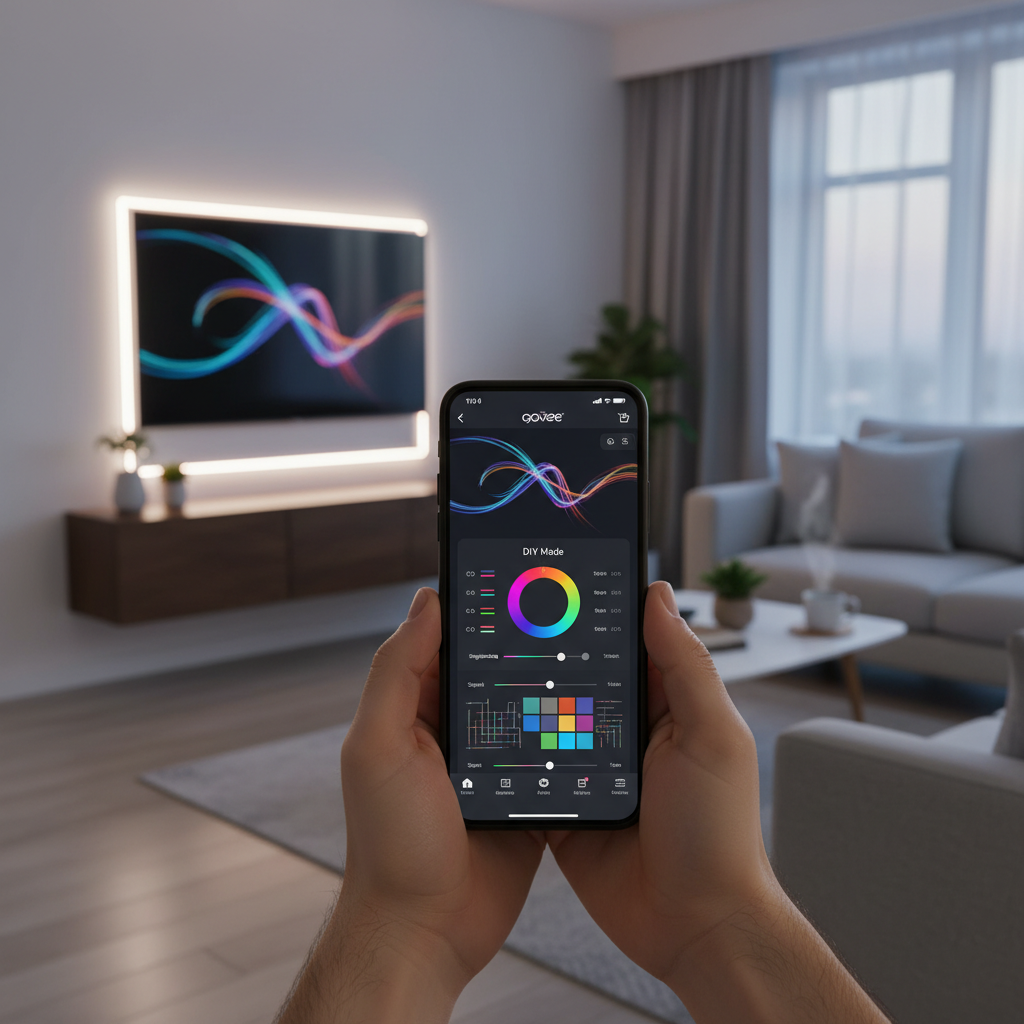
Have you ever wished your smart lights could do more than just cycle through presets? With Govee’s innovative DIY mode, you have the power to transform your lighting setup into a personalized masterpiece. This isn’t just about picking colors; it’s about crafting dynamic, unique light shows that perfectly match your mood, decor, or event. Whether you’re aiming for a subtle ambient glow or a vibrant, energetic display, the Govee app’s DIY features offer an unparalleled level of customization. In this comprehensive guide, we’ll walk you through everything you need to know, from the basics of creating your first custom effect to exploring advanced techniques that will truly set your lights apart.
Understanding the Govee App’s DIY Feature
The Govee app’s DIY (Do-It-Yourself) feature is a powerful toolkit designed for users to create and save their own unique lighting effects. Instead of being limited to factory presets, DIY mode empowers you to be the artist, dictating every aspect of your light show. This includes everything from specific color combinations and patterns to motion speeds and intricate multi-layered animations.
At its core, DIY mode provides an intuitive interface within the Govee Home app, allowing you to visually program your lights. It’s an accessible way to personalize your smart lighting, whether you’re using light strips, panel lights, or other Govee devices. The ability to craft custom effects unlocks a new dimension of home ambiance, enabling you to express creativity and perfectly tailor your environment.
Step-by-Step Guide to Programming Basic DIY Effects
Creating your first custom effect in the Govee app’s DIY mode is a straightforward process, designed to get you customizing quickly. Here’s how to begin crafting your unique light scenes:
First, open the Govee Home app and select the specific device you wish to customize. Once on your device’s control page, look for the “DIY” tab or section, often represented by a “pencil” icon or a “plus” symbol in the top right corner. Tapping this will take you into the DIY creation interface.
Once inside, you’ll be prompted to name your new DIY scene. Choose a descriptive name that helps you easily identify the effect later, such as “Sunset Fade” or “Energetic Party.” After confirming the name, you can start selecting the type of effect you want to create. Govee offers various basic effect types, including simple chases, fades, or even “finger sketch” options where you can “paint” colors onto a visual representation of your lights.
Next comes color selection. Most DIY modes allow you to pick colors from a palette of “color tiles.” You can continuously press the plus symbol to add different colors to your sequence. For more precise color matching, some advanced sections might even allow you to input HEX codes, providing thousands of choices for exact hues. Experiment with various color combinations to find what best suits your desired mood.
After setting your colors, you can adjust parameters like speed and direction. For effects like “chase,” you can easily increase or decrease the speed at which colors move across your lights. Some effects also offer options to change the direction of movement or adjust other dynamic elements. Once you are satisfied with your custom light show, remember to hit the “save” button. Your newly created DIY effect will then be stored in your app, usually within a “default” folder or a custom folder you designate.
Advanced Customization: Exploring Govee’s Creative Tools
Beyond basic color and speed adjustments, the Govee app offers powerful advanced tools to unleash even greater creativity. These features allow you to craft truly complex and mesmerizing lighting experiences.
One of the most impactful advanced features is the ability to create layered effects, often found within the “Workshop” or “Light Studio” sections of the app for compatible devices. Imagine building a thunderstorm effect: you could have a subtle blue background as Layer 1, a gentle “rain” effect with adjustable intensity as Layer 2, and then sharp, quick “lightning” flashes as Layer 3 and Layer 4, perhaps even varying their direction and timing for added realism. This multi-layered approach allows for incredible depth and dynamism, letting you combine different animations and colors simultaneously.
For certain Govee lights, you can even incorporate text effects. This feature lets you make your lights display words, offering a unique way to personalize messages for holidays, celebrations, or daily affirmations. You can choose the text color, decide between uppercase or lowercase letters, and specify the text field position (top, middle, or bottom of the screen). Crucially, you can also adjust the speed at which the text scrolls across your lights, adding another layer of visual interest.
The Finger Sketch tool provides a highly interactive way to design patterns. It’s like having a digital canvas where you use your finger to “paint” specific colors onto individual segments or pixels of your Govee lights. This is particularly useful for creating static, intricate designs or precise color gradients across your setup. You can zoom in for fine detail, switch between colors easily, and even use tools like an eraser to refine your sketch. This mode often appears when starting a new DIY effect, highlighted as the default option.
Finally, the Snapshot function is a handy tool within some advanced settings. This allows you to capture a specific moment or configuration of your lights as a “snapshot.” If you’ve created a complex arrangement of colors and effects but only want to save a particular static look or a segment of a dynamic show, a snapshot can preserve that exact state for later use or as a base for further customization.
Sharing and Discovering Effects in the Govee Community
One of the most vibrant aspects of the Govee ecosystem is its thriving community, where users can share their creative lighting designs and discover inspiration from others. The “Shared Space” or “Workshop Creation” sections within the Govee app act as a global gallery for these custom effects.
Discovering New Effects: If you’re looking for inspiration or a quick way to enhance your lighting, navigating to the “globe” icon (often the second icon from the left at the bottom of the app) will lead you to the community features. Here, you can browse a vast library of user-created effects, often categorized by themes like seasons (e.g., “Christmas,” “Halloween”) or specific lighting setups (e.g., outdoor lights). Many of these shared effects come with preview videos, allowing you to see them in action before you decide to “apply” them to your own lights.
Importing and Modifying: Once you find an effect you like, you can often “apply” it to your compatible Govee device. Even better, many shared effects are “editable,” meaning you can import them into your DIY section and then tweak the colors, timing, and other parameters to perfectly match your aesthetic. This is an excellent way to learn from experienced creators and build upon existing designs. Ensure the effect you’re importing is compatible with your specific light model for the best results.
Sharing Your Creations: After spending time crafting a truly unique and impressive DIY effect, you might want to share it with the world! The Govee app typically allows you to upload your saved DIY scenes to the Shared Space. This involves giving your effect a title and often uploading a short video demonstration so other users can appreciate your setup and readily use your creation. Sharing not only contributes to the community but also allows you to receive feedback and engage with fellow Govee enthusiasts.
Optimizing Your Govee DIY Effects: Tips and Best Practices
To get the most out of the Govee app’s DIY mode and create truly outstanding lighting effects, consider these expert tips and best practices:
- Start Simple, Then Elaborate: When beginning, don’t try to create a five-layer masterpiece immediately. Start with a simple color chase or a two-color fade. As you become more familiar with the tools and interface, gradually introduce more complexity, such as additional colors, varying speeds, or layering effects. This incremental approach makes the learning curve much smoother.
- Check Device Compatibility: Not all Govee lights support every DIY feature. Advanced options like multi-layer effects, text display, or intricate pixel mapping might be specific to certain models (e.g., curtain lights, permanent outdoor lights, or those with individual LED control). Always verify that your particular Govee device supports the features you intend to use for your custom effect.
- Experiment with Parameters: The true magic of DIY lies in experimentation. Play around with different speeds, directions, color gradients, and effect types. What happens if you make the chase extremely slow? What if you use only two contrasting colors? Small adjustments can lead to dramatically different and exciting results. Don’t be afraid to try unconventional combinations.
- Leverage HEX Codes for Precision: For those who demand exact color matching, learning to use HEX codes can be a game-changer. Instead of relying on the visual color picker, which can sometimes be imprecise, HEX codes allow you to input specific values (e.g., #FF0000 for pure red) to achieve exact shades. This is invaluable for branding, themed events, or matching specific decor elements.
- Stay Updated with App Firmware: Govee regularly updates its app and device firmware to introduce new features, improve performance, and fix bugs. These updates can sometimes change the user interface or add new capabilities to the DIY mode. Regularly checking for and installing updates ensures you have access to the latest tools and the most stable experience.
- Utilize the Community for Inspiration: The Govee Shared Space isn’t just for sharing; it’s a fantastic resource for inspiration. Browse popular effects, observe how others combine elements, and download editable effects to reverse-engineer their creation process. This can spark new ideas and teach you techniques you might not have discovered on your own.
“The Govee DIY mode is truly where your imagination can take flight. Don’t underestimate the power of starting with a simple idea and iteratively building upon it. The most stunning effects often come from playful experimentation.” – Alex Chen, Smart Lighting Specialist
Troubleshooting Common Govee DIY Challenges
Even with the most intuitive tools, you might encounter a few hurdles while crafting your custom Govee effects. Knowing how to address common issues can save you time and frustration.
One frequent challenge is when effects don’t seem to apply or save correctly. First, ensure you’ve tapped the “Save” button after making changes. Sometimes, connectivity issues can prevent changes from being sent to your device; verify that your Govee device is powered on, connected to Wi-Fi (if applicable), and within Bluetooth range. If an effect isn’t applying, try restarting both the Govee app and your light device.
You might also face difficulty with specific features or finding certain options. The Govee app’s interface can evolve with updates, and some features might be hidden within sub-menus or behave differently depending on your specific light model. If you can’t locate a function, double-check that your app is updated to the latest version. Consulting the Govee official support pages or community forums (like Reddit’s r/Govee) can often provide answers or workarounds from other users who have encountered similar situations.
Lastly, app updates changing the user interface can sometimes be a headache. What was once in one place might move in a new version. If an update has occurred and you’re disoriented, take a moment to explore the updated app layout. Govee often provides release notes that highlight significant UI changes or new features. Sometimes, searching within the app’s help section for “DIY” or “custom effects” can point you to the updated location of tools. Patience and exploration are key when navigating app changes.
Conclusion
The Govee app’s DIY mode stands as a testament to the power of personalized smart lighting. It transforms a simple light source into a canvas for your creativity, allowing you to move beyond standard presets and craft truly unique effects that resonate with your personal style and needs. From defining specific colors with HEX codes to orchestrating complex, multi-layered animations in the Workshop, the possibilities are vast.
By understanding the basic steps of effect creation, delving into advanced tools like text effects and finger sketching, and leveraging the vibrant Govee community for inspiration and sharing, you can unlock the full potential of your smart lights. Remember to start small, experiment freely, and troubleshoot common issues with a systematic approach. With these insights, you’re well-equipped to program custom effects in your Govee app and illuminate your world in ways you never thought possible. What custom light masterpiece will you create next?
Frequently Asked Questions
Can I use HEX codes for custom colors in Govee?
|
Our Picks for the Best LED strip light in 2026
As an Amazon Associate I earn from qualifying purchases.
|
||
| Num | Product | Action |
|---|---|---|
| 1 | dalattin White LED Strip Lights, 20ft Dimmable Super Bright 24V Led Tape Light 6500K 360 LEDs Lights for Bedrooms, Mirror, Kitchen, Home Decoration Daylight White |

|
| 2 | DAYBETTER LED Strip Lights 110ft, Smart Lighting Strips with App Remote Control, RGB Music Sync Color Changing Lights for Bedroom Kitchen Party Home Decor Luces led para cuarto (1 Roll) |
|
| 3 | Govee White LED Strip Lights, Upgraded 16.4ft Dimmable LED Light Strip 6500K Bright Daylight White, Strong Adhesive, 300 LEDs Flexible Tape Lights for Mirror, Kitchen Cabinet, Bedroom, Christmas Decor |
|
| 4 | Barrina (6 Pack LED T5 Integrated Single Fixture, 4FT, 2200lm, 6500K Super Bright White, 20W Utility LED Shop Light, Ceiling and Under Cabinet Light, Corded Electric with ON/Off Switch, ETL Listed |
|
| 5 | Govee 100ft RGBIC LED Strip Lights, Smart LED Lights Work with Alexa and Google Assistant, LED Lights for Bedroom WiFi App Control Segmented DIY Multiple Colors, Color Changing Light, (2 x 50ft) |
|
| 6 | White Led Strip Lights for Bedroom Small Dimmable LED Lights Strip 16.4ft Super Bright Flexible LED Tape Lights Rope Light for for Room Home Decor Luces Leds for Living Room Kitchen Vanity Mirror |
|
| 7 | NBBUFF Led Lights for Bedroom 50ft (1 Roll), Color Changing RGB Led Strip Lights with 60 Keys Remote and App Control, Music Sync Led Lights for Room Kitchen Party Home Decor |
|
| 8 | DAYBETTER Led Strip Lights 32.8ft Kit with Remote and Power Supply Color Changing |
|
| 9 | Govee RGBIC LED Strip Lights, Smart LED Lights for Bedroom, Bluetooth LED Lights APP Control, DIY Multiple Colors on One Line, Color Changing LED Strip Lighting Music Sync, Home Decor, 16.4ft |
|
| 10 | KSIPZE 100ft Led Strip Lights RGB Music Sync Color Changing Led Lights with Smart App Control Remote Led Lights for Bedroom Room Lighting Flexible Home Décor |
|
Yes, in many advanced sections of the Govee app’s DIY mode, you can input specific HEX codes to achieve precise color matching. This allows for highly accurate color customization beyond what the standard color picker offers, ensuring your lights perfectly match a specific theme or aesthetic.
How do I share my DIY Govee effects with others?
After creating and saving your custom DIY effect, you can typically share it through the Govee app’s “Shared Space” or “Workshop Creation” section. This usually involves giving your effect a title and often uploading a short video demonstrating it so other Govee users can discover and apply your creation.
What are layers in Govee DIY effects?
Layers, found in advanced DIY features like Workshop or Light Studio, allow you to combine multiple individual effects or patterns simultaneously on your Govee lights. For example, you can have a static background color as one layer and a moving animation as another, creating complex and dynamic lighting scenes.
Why isn’t my Govee DIY effect saving or applying?
If your Govee DIY effect isn’t saving or applying, first ensure you’ve pressed the “Save” button. Check your device’s connectivity (Bluetooth/Wi-Fi) and power status. Sometimes, restarting the Govee app or the light device itself can resolve temporary glitches. Also, verify that your specific Govee light model supports the features you’re trying to use.